
When you upload a Bill of Materials (BOM) into Breadboard, the system automatically attempts to identify all the MPNs and match them with our database. However, the data from BOMs is not always perfect—typos, internal part numbers, or incomplete information can lead to discrepancies. Therefore, it's essential to spend some time cleaning up the MPNs before starting the allocation process.
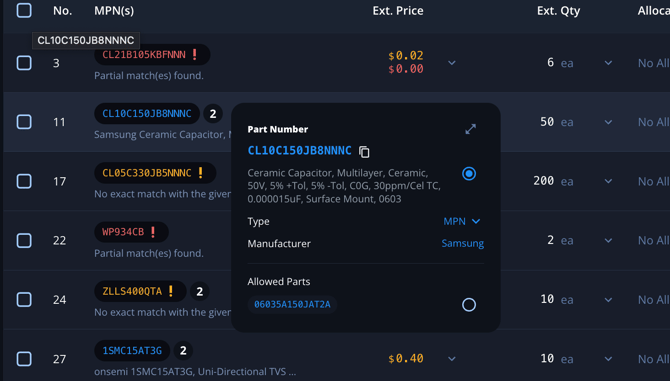
MPN Color Codes
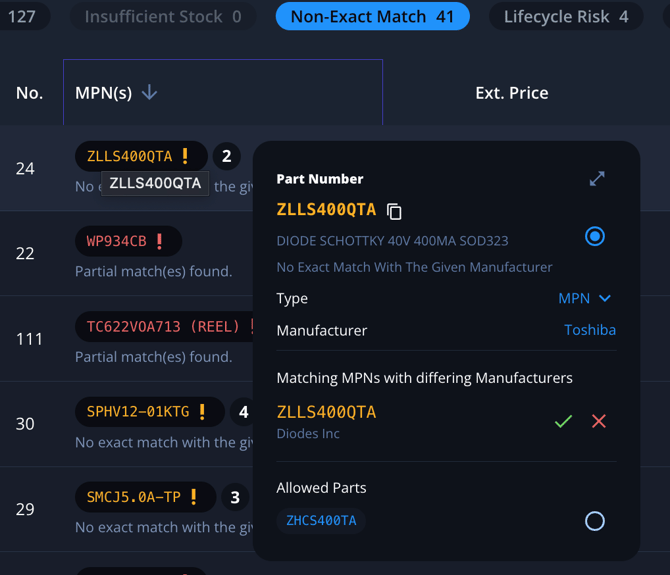
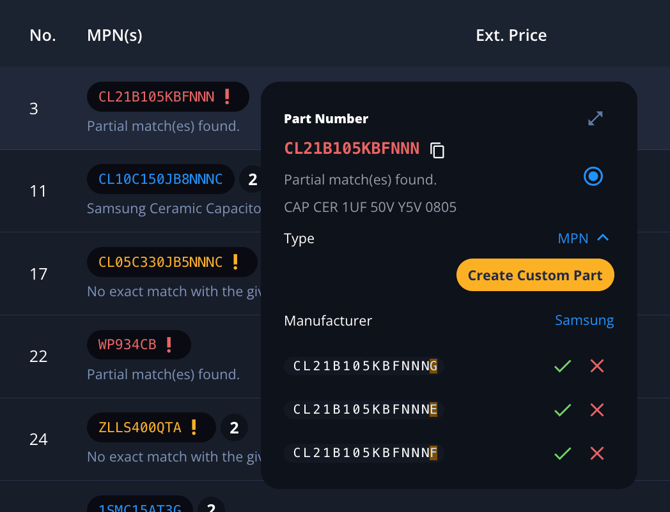
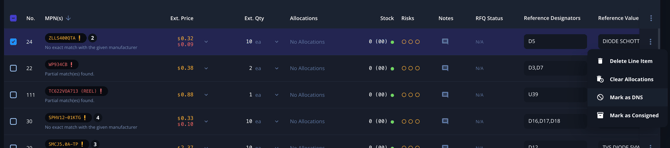
To help you quickly identify and address MPN issues, Breadboard uses a color-coded system:
- Blue: The MPN matched with our data and is typically good to go.
- Yellow: The part number was found, but there may be multiple manufacturers, requiring a second look.
- Red: A partial match or no match was found, indicating a need for manual review and correction.
See examples below:
Cleaning Up MPNs
Step-by-Step Guide
- Initial Review:
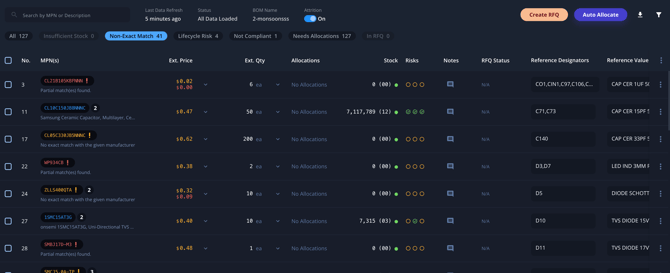
- After uploading a BOM, begin by reviewing the MPNs. Focus on the yellow and red items first, as these require the most attention.
- Navigate to the BOM view where all line items are displayed with their respective MPNs and color codes.
- Identify Issues:
- Yellow MPNs: Hover over these items to see the specific issue. The most common issue is that the part number was found, but there may be multiple manufacturers with the same part number.
- Resolve: Click into the line item to view the potential matches and select the correct one. If necessary, search for the part by description to find the exact match.
- Red MPNs: These items were either a partial match or did not match in the database.
- Resolve: Click into the line item and manually correct the MPN. If you cannot find a match, you might need to search for the part by description or create a custom part.
- Yellow MPNs: Hover over these items to see the specific issue. The most common issue is that the part number was found, but there may be multiple manufacturers with the same part number.
- Editing MPNs:
- You can edit MPNs directly from the BOM view. Simply click on the MPN field to make changes. This allows you to quickly correct any typos or update internal part numbers.
- Alternatively, click into each line item for a more detailed view and make necessary edits there.
- Suggestions and Corrections:
- Breadboard offers suggestions for corrections where possible. Review these suggestions and make the appropriate changes.
- You retain the power to approve or reject these changes, ensuring accuracy and alignment with your needs.
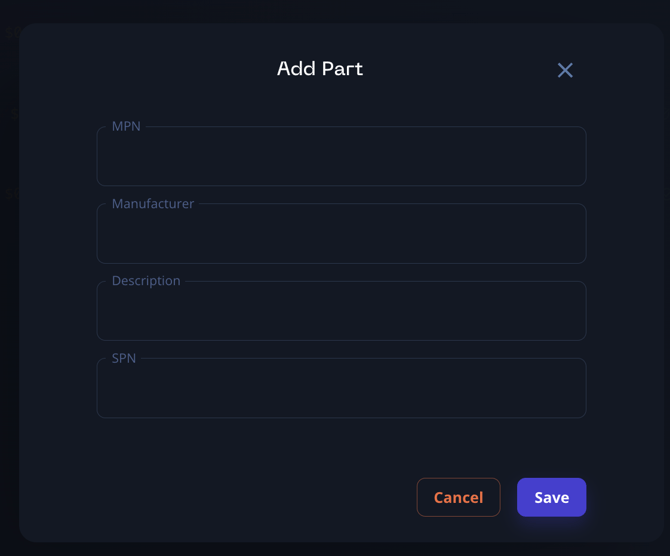
- Creating Custom Parts:
- For custom parts that do not have a standard MPN, you can create a custom part within the system.
- Input all relevant details and associate a manual bid if required. This ensures that even unique or internal parts are accounted for in your BOM.
- Marking DNS (Do Not Source):
- If certain parts do not need to be sourced, mark them as DNS. This clears them from the list of items needing attention and streamlines your allocation process.
- Using Alternates:
- If an alternate part was pulled in, you will see this under the "Allowed Alternate" field. Review these alternates and decide if they are suitable replacements which may help clear out the line items needing additional review.
Best Practices
- Start with Non-Exact Matches: Begin by addressing yellow and red MPNs to resolve the most critical issues first.
- Use Hover Information: Hover over problematic MPNs to quickly understand the issue and determine the best resolution method.
- Search by Description: Sometimes searching for a part by its description can help in finding the correct MPN, especially if it's a common issue with multiple potential matches.
- Leverage Suggestions: Breadboard's system suggestions are designed to help you quickly identify and correct MPNs, but always verify before approving changes.
- Regular Updates: Regularly update and review your BOMs to ensure all information remains accurate and up-to-date.
By following these steps and best practices, you can efficiently clean up and modify MPNs, ensuring your BOM is accurate and ready for the allocation process. This not only saves time but also enhances the accuracy of your procurement and project management workflows.