Header

- BOM Name:
- The BOM name is prominently displayed at the top of the view. This is the name you assigned when creating or importing the BOM. It's your quick reference to ensure you’re working on the correct project.
- Rows Estimated:
- This indicates the total number of lines in the BOM that contain data. It’s a quick way to gauge the complexity and size of your BOM, helping you understand the scope of the project at a glance.
- Unit Price:
- The unit price shown here can be either estimated or actual, depending on the allocation status of the BOM.
- Estimated: If allocations have not yet been finalized, the unit price is an estimate based on the data available.
- Actual: Once the BOM is fully allocated, the unit price reflects the actual cost per unit as confirmed with suppliers.
- Batch Size:
- The batch size field allows you to view the BOM costs based on different batch sizes.
- You can switch between batch sizes or even add new ones directly from this view. This flexibility is crucial for understanding how changes in batch size affect overall pricing and material requirements.
- Total Price:
- The total price represents the combined cost of materials, excess components, tax, and shipping (if applicable).
- Similar to unit price, this can be either an estimated or actual value, depending on the allocation status.
- Estimated: Before final allocations, this reflects an estimated total cost.
- Actual: Post-allocation, this shows the confirmed total cost of the BOM, including all additional expenses.
High-Level Stats of BOM in Donuts
To provide a quick overview of the BOM’s status, Breadboard uses donut charts to visualize key metrics:
- Line Items In Stock:
- This donut chart shows the percentage of line items that are currently in stock with your selected suppliers. It helps you quickly assess the availability of the components needed for your project.
- Line Items in Production (e.g., Obsolete, NRND):
- This chart displays the status of line items that are in production, including those that are marked as obsolete or Not Recommended for New Design (NRND).
- This information is crucial for identifying potential supply chain risks and planning for alternate components if necessary.
- Compliant (ROHS & REACH Status):
- This donut chart shows the compliance status of the components in your BOM, specifically regarding ROHS and REACH regulations.
- Ensuring compliance is vital for meeting regulatory requirements and avoiding potential legal or environmental issues.
- Allocations:
- This chart indicates how many of the line items have been allocated. It gives you a quick snapshot of how much of your BOM has been fully matched with supplier data and pricing.
- A higher percentage here indicates that your BOM is closer to being ready for final quoting and procurement.
BOM Table
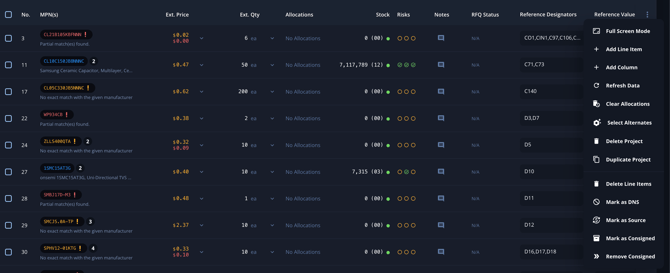
Additional Actions
Breadboard provides several additional actions to help manage your BOM effectively:
- Delete Line:
- If a line item is no longer needed, you can delete it. Select the line item and click the "Delete" option to remove it from the BOM.
- Add Line Item:
- To add a new part to the BOM, click on the "Add Line Item" button. Enter the necessary details, including the MPN, description, quantity, and any other relevant information.
- Marking Consigned:
- If a line item/part is consigned (provided by the customer and not to be sourced), you can mark it as consigned. This helps differentiate between parts that need to be procured and those that do not.
- Duplicate Project:
- To duplicate an entire project, select the item and choose the "Duplicate" option. This creates a copy of the entire project, which you can then modify as needed. This is a could option for requotes if you want to preserve historical data.
- Delete Project
- Similar to deleting a line, if an entire project needs to be removed, you can use the "Delete Project" option to completely remove it Breadboard.