
Overview
The Projects feature in Breadboard provides a comprehensive view of all projects your team has ever worked on. This includes access to quotes, purchase orders, and other critical documents. This central repository ensures that all project-related information is easily accessible, promoting efficiency and transparency within your team.
Accessing Projects
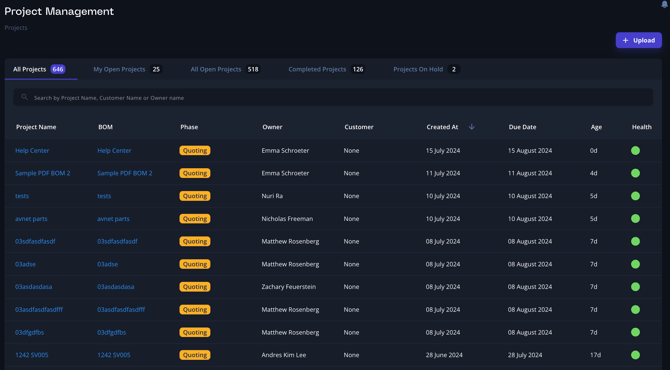
- Navigation: From the main dashboard, click on the "Projects" tab located on the top navigation bar. This will direct you to the Projects overview page.
- View All Projects: Here, you will see a list of all projects. The default view shows the most recent projects at the top, but this can be sorted, filtered and searched through using the table.
- Clicking into Project: You can click into the Project Name to see the project information or directly on the BOM to bring yourself to the BOM view.
Searching Projects
Efficiently searching for projects in Breadboard is essential for quickly accessing the information you need. The search functionality is designed to help you locate projects based on various criteria, ensuring you can find specific projects with ease.
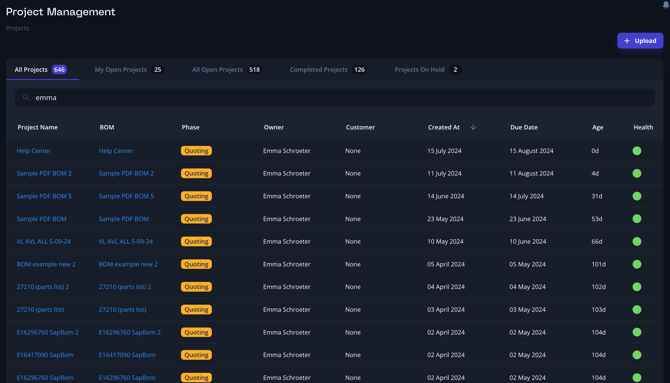
- Search by Project/BOM Name:
- Use the search bar at the top of the Projects page.
- Enter the project name or a keyword related to the project. The system will display a list of projects that match your search term.
- Search by Customer:
- In the search bar, type the name of the customer associated with the project.
- The system will filter and display all projects linked to that customer, making it easy to locate client-specific projects.
- Search by Owner:
- Enter the name of the project owner in the search bar.
- This feature is particularly useful for team leads to find projects managed by specific team members.
Filtering Your Project Management View
Breadboard allows you to customize your project management view to better suit your workflow. Here are the options available:
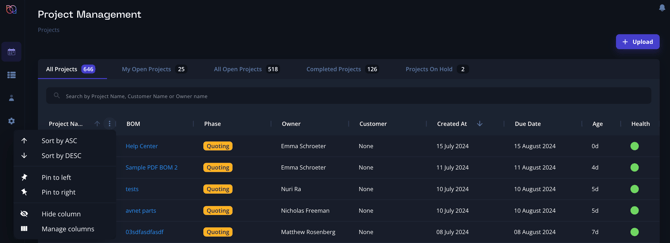
Sort by Ascending/Descending
- Sorting Projects:
- Click on the column header of the field you wish to sort by (e.g., Project Name, Date, Status).
- Click once to sort in ascending order, and click again to sort in descending order.
- Sorting helps in quickly organizing projects based on specific criteria, making it easier to locate relevant projects.
Pin Certain Columns to Rearrange Order
- Pinning Columns:
- Hover over the column header you want to pin.
- Click on the pin icon that appears to pin the column to the left or right side of the project table.
- Pinned columns stay fixed in place when you scroll horizontally, allowing you to keep important information visible at all times.
Manage Columns (Hiding and Viewing Certain Ones)
- Managing Columns:
- Click on the column settings icon, usually represented by three vertical dots or a settings gear, located at the top right corner of the project table.
- Select “Manage Columns” from the dropdown menu.
- In the manage columns window, you can check or uncheck columns to hide or show them.
- Click "Save" to apply your changes. This customization ensures that your project view displays only the most relevant information, streamlining your project management process.
Starting a New Project
-
- Upload - Click to start a new project.
Best Practices
- Regular Updates: Keep project statuses and details regularly updated to ensure all team members have access to the latest information.
- Use Statuses & Health: Utilize statuses and health to keep track of your ongoing projects.
- Collaborate Efficiently: Make use of the comments and notes sections within each project to communicate updates, issues, and resolutions among team members.